5 Essential Steps for Successful HDD Cloning to Smaller Drives

HDD cloning is an essential task for IT professionals, enabling smooth system migrations, backups, or hardware upgrades. Copying data from a large-capacity hard drive to a smaller SSD can seem daunting, but with the right preparation and tools, the process is straightforward. In this guide, we’ll walk you through resizing partitions and using a hard drive duplicator with the System and Data Copy feature.

Table of Contents

What Is HDD Cloning?

HDD cloning involves creating an exact copy of one hard drive onto another. The System and Data Copy feature on duplicators is ideal for this task, as it clones only the used data within partitions, making it possible to transfer data to a smaller target drive.


Step-by-Step Guide: Cloning a Large HDD to a Smaller HDD

Precondition – Prepare the Source Hard Drive’s Partition

Before starting the cloning process, ensure the following preconditions are met:

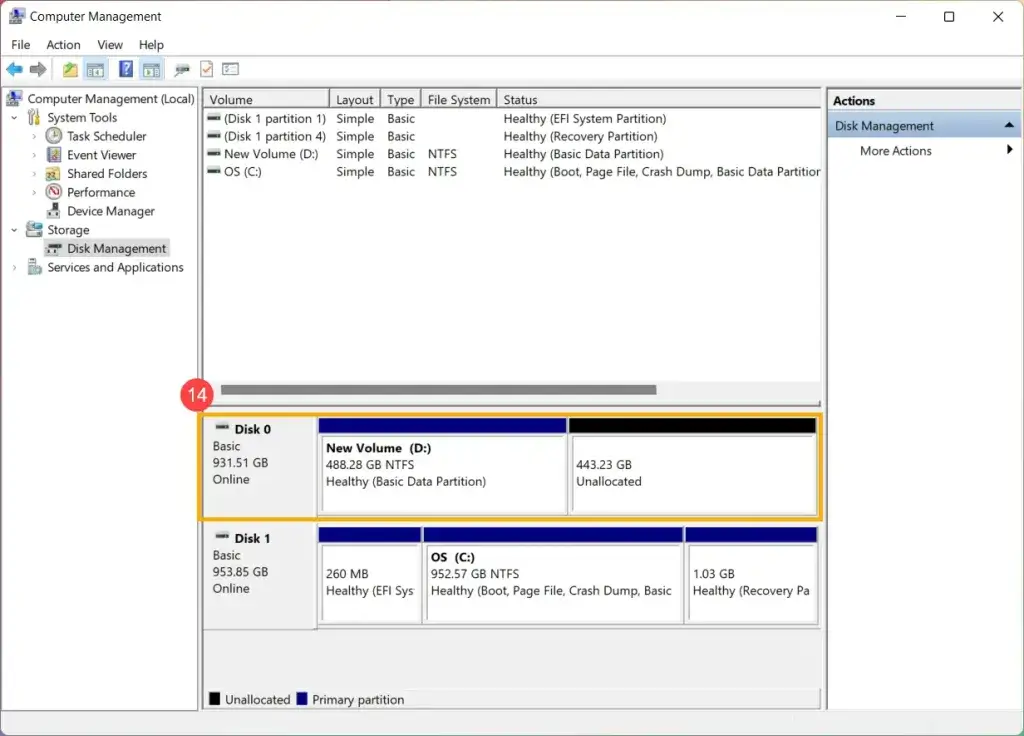
  1. Analyze Disk Usage:

    • Confirm the source HDD’s used data (total partition) is smaller than the target drive’s capacity.
    • Use tools like Disk Management (Windows) or Disk Utility (macOS) to check partition sizes.
  2. Resize Partitions:

    • Use partition tools such as GParted or EaseUS Partition Master to shrink the partitions on the source drive.
    • Leave some free space for system functionality and confirm that critical data fits within the reduced partition.
  3. Defragment the Source Drive (Optional):

    • Defragmentation ensures contiguous storage of data, reducing potential issues during resizing.

Step 1: Start the Duplicator and Check Hard Drive Capacities

  1. Power on the hard drive duplicator.
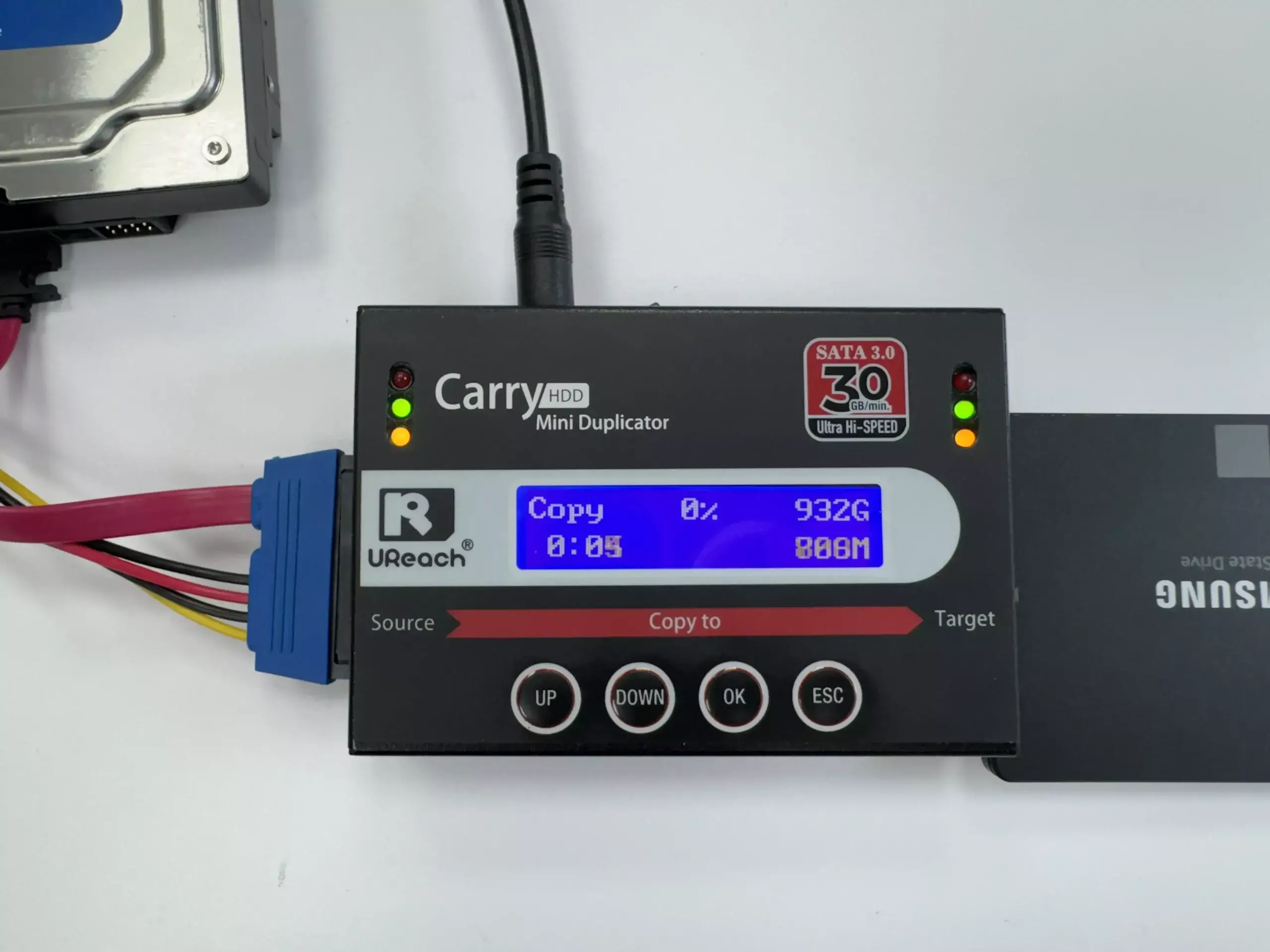
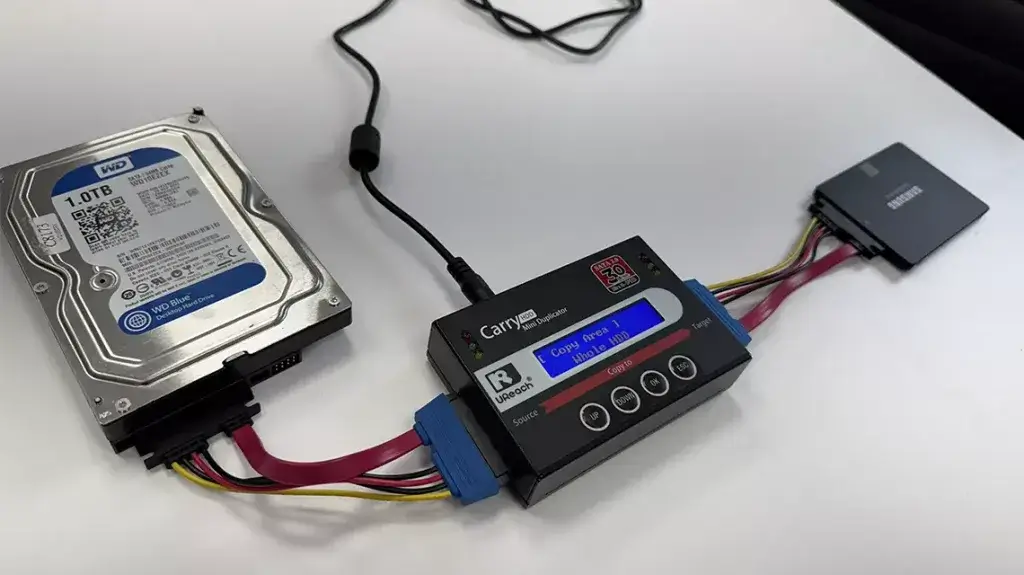
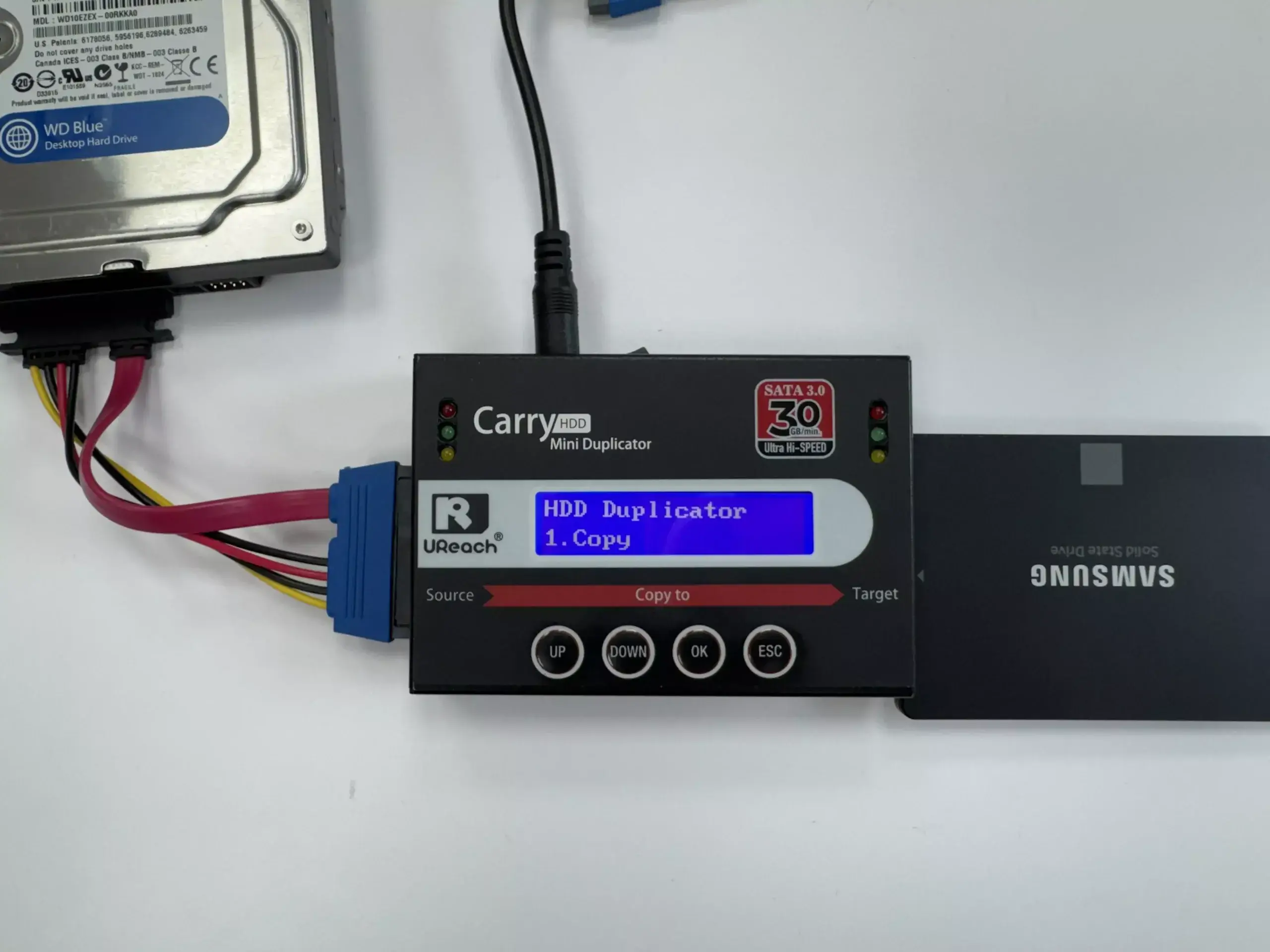
  2. Connect the source HDD (larger capacity) to the Source Port and the target HDD (smaller capacity) to the Target Port.
    • This occurs when the source drive’s capacity is inherently larger than the target drive, requiring specific adjustments to proceed.
  3. Verify that the data on the source HDD can fit within the target HDD’s capacity after adjustments.

Example: In this scenario, we are cloning data from a 1TB hard drive to a 500GB SSD. By ensuring the used data on the 1TB HDD is less than 500GB and following the necessary adjustments, the cloning process can proceed smoothly.

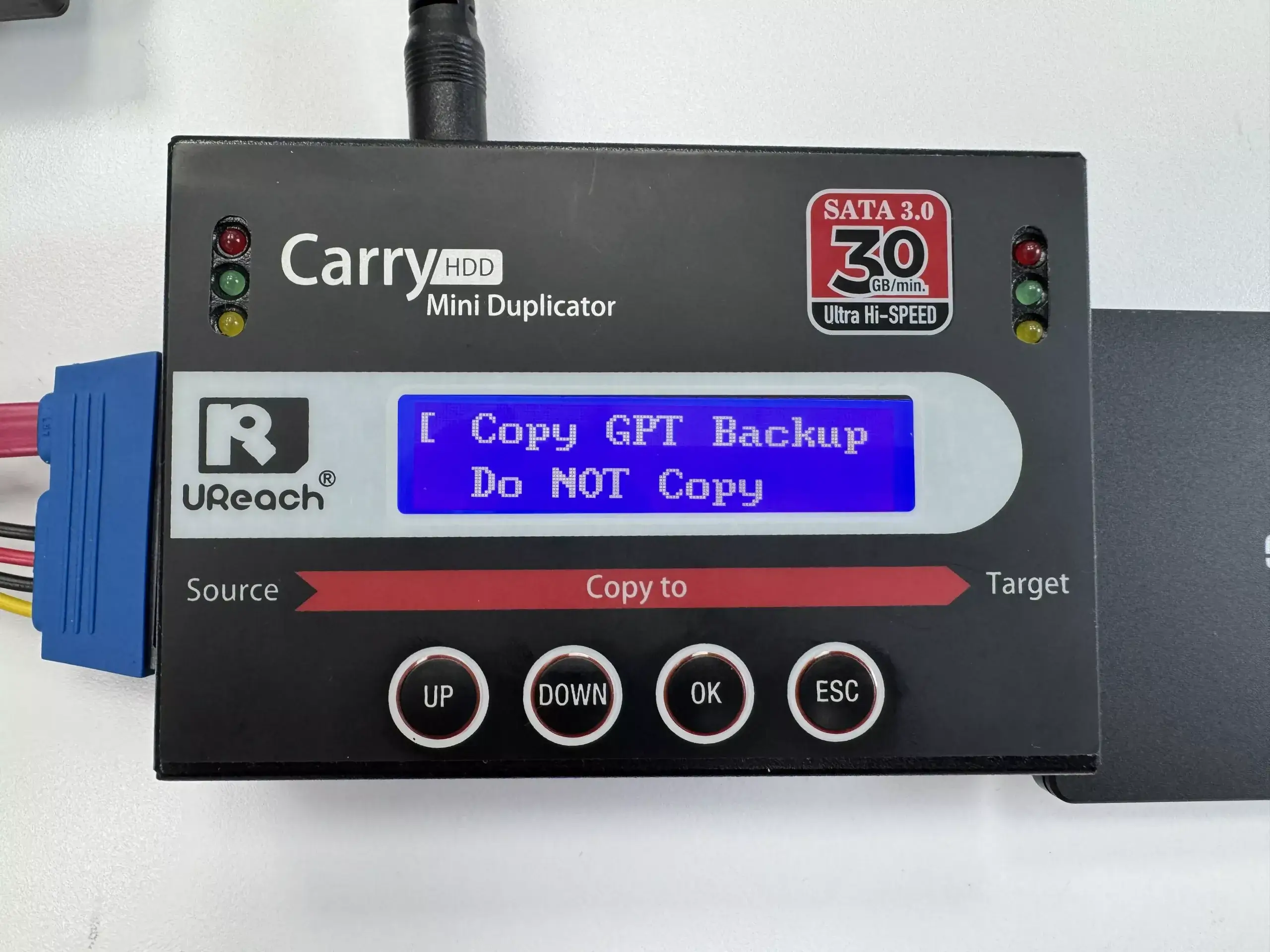
Step 2: Adjust the “Copy GPT Area” Setting

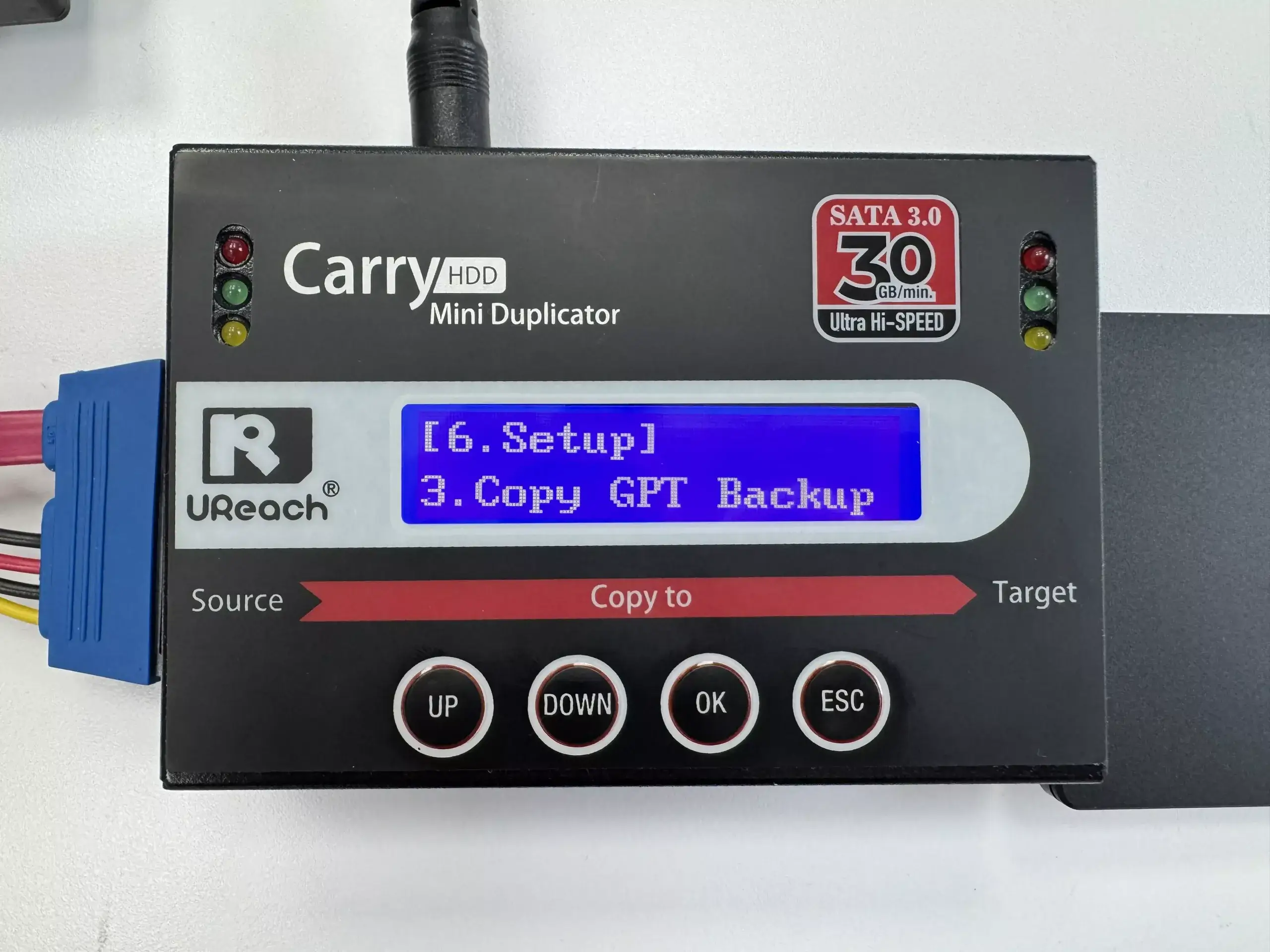
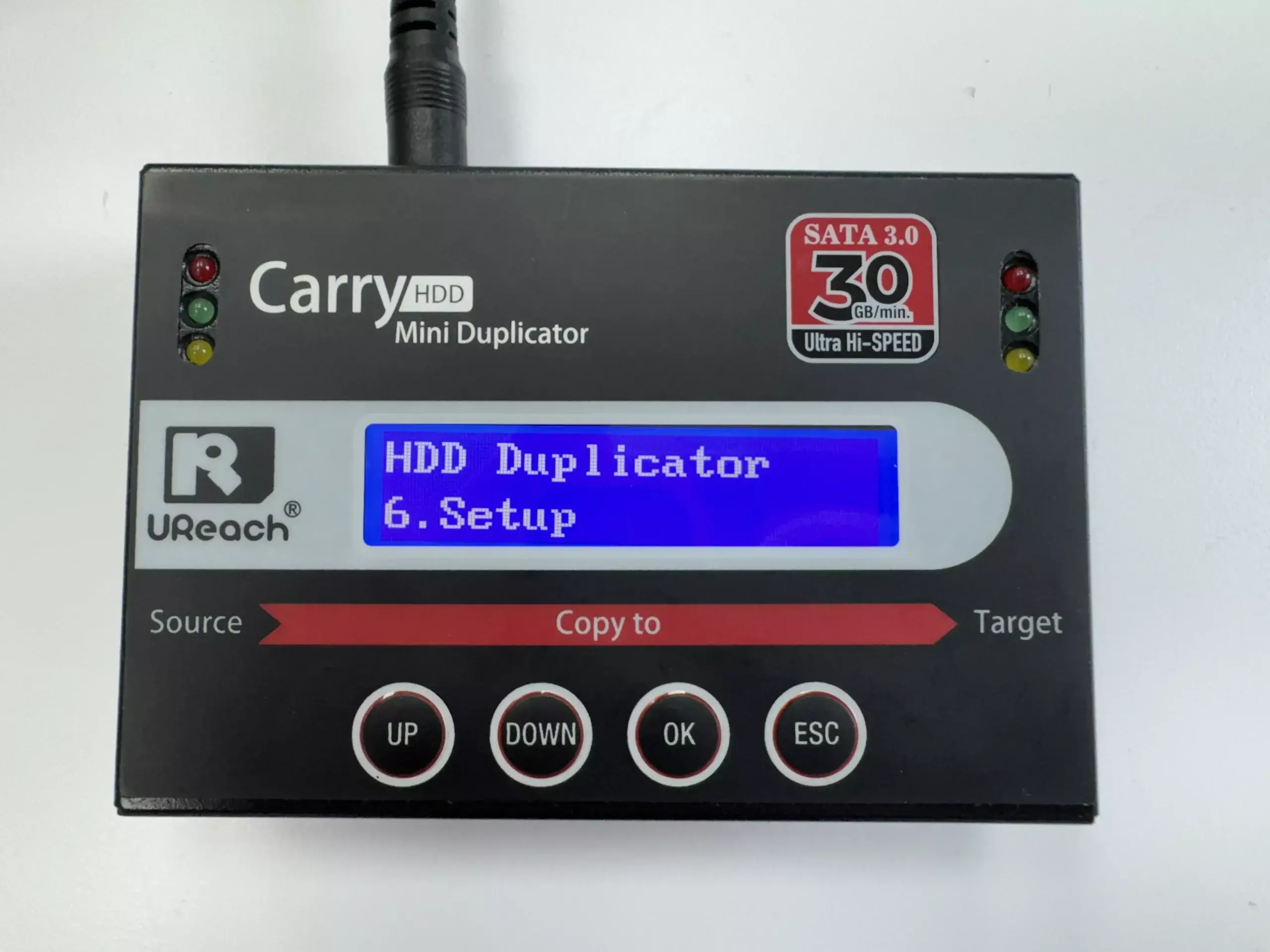
  1. Navigate to the 「6. Set up」 menu on the duplicator’s interface.
  2. Select 「3. Copy GPT Area.」

    Choose 「Do Not Copy」 to prevent copying the GPT area, which may cause compatibility issues during size mismatches.
Step 3: Configure the Copy Mode to “Whole HDD”

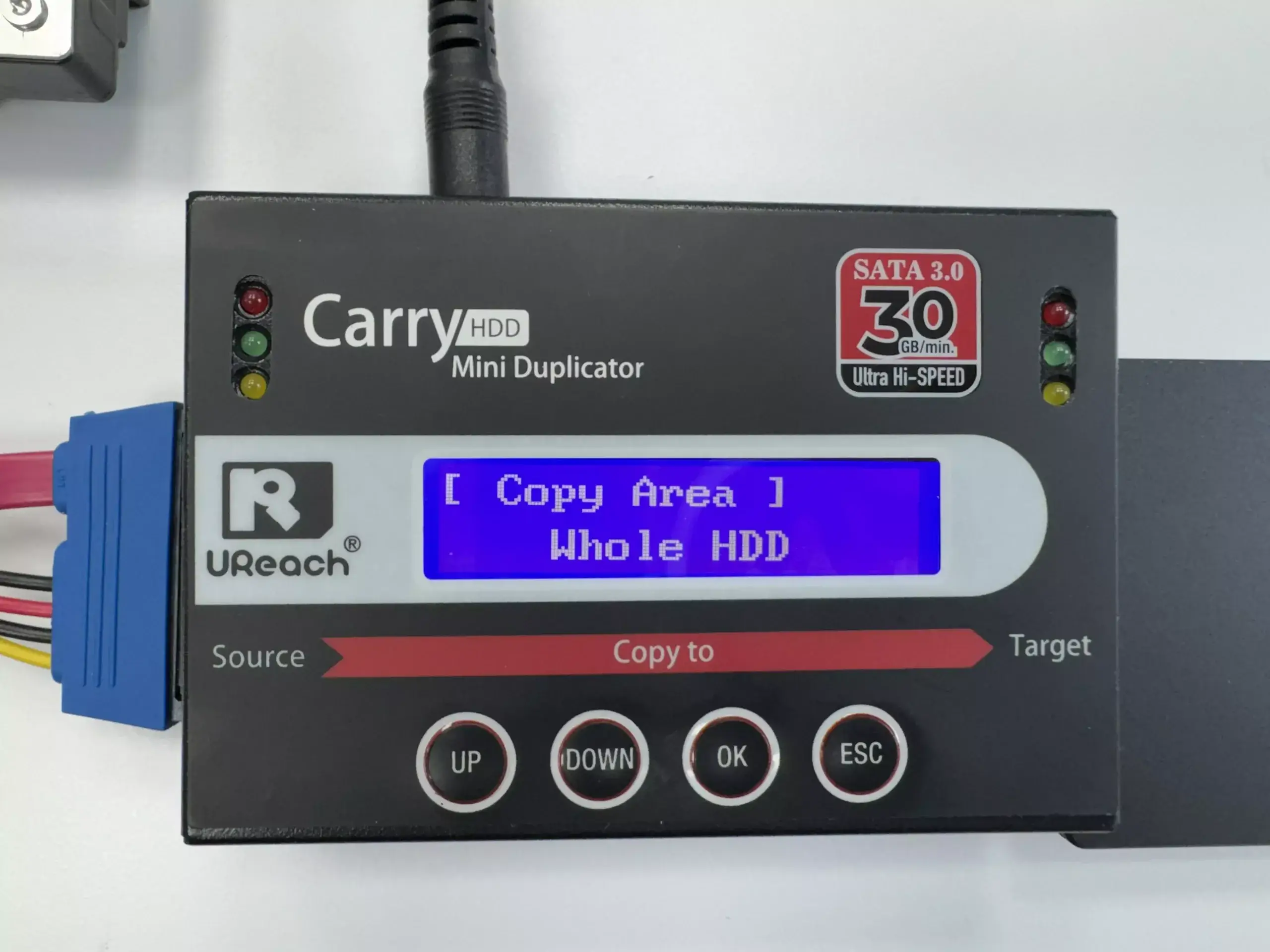
  1. Return to the 「6. Set up」 menu.
  2. Select 「1. Copy Area」 and choose 「Whole HDD 」mode to ensure a complete sector-by-sector copy.
Step 4: Start the Cloning Process

  1. Return to the main menu and select 「Copy」.
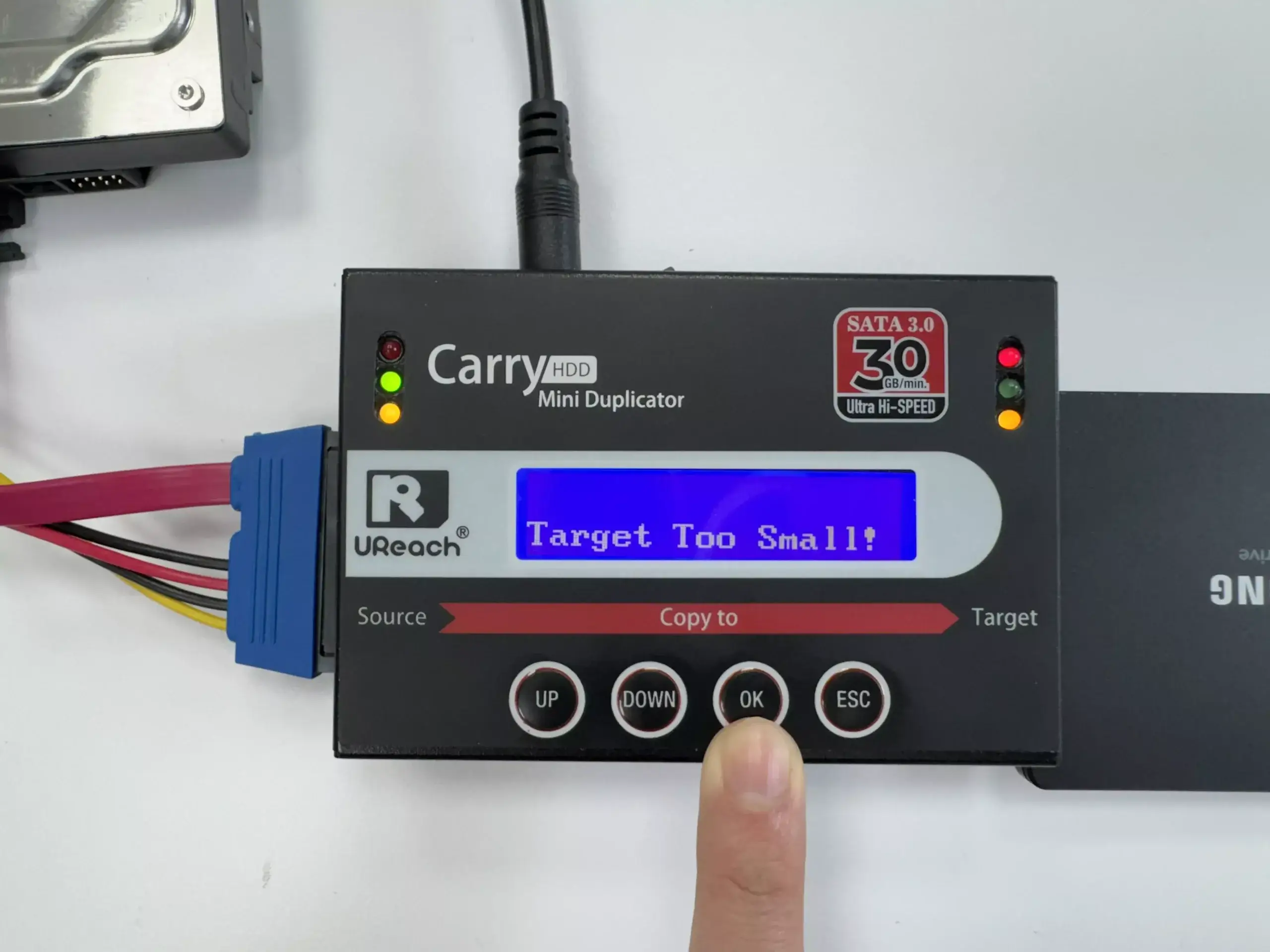
  2. The duplicator may display a “Target Too Small” warning.
    • Press 「OK 」again to confirm and proceed with the cloning process, as the previous settings will allow it to complete successfully.
Step 5: Verify the Cloned Drive

  1. Once the process is complete, connect the target HDD to a computer.
  2. Verify that all essential files and partitions are intact and that the drive functions as expected.

Why Use a Hard Drive Duplicator?

Hard drive duplicators simplify the cloning process by providing:

  1. High Speed: Faster data transfer compared to traditional software tools.
  2. Ease of Use: Simple, user-friendly operation without requiring a computer.
  3. Versatility: Support for multiple drive types and interfaces.
  4. Reliability: Built-in verification to ensure error-free copies.

Advantages of HDD Duplicators

Hard drive duplicators are purpose-built devices that simplify data transfer with unique benefits:

  1. Speed: Duplicators provide high-speed cloning, often achieving transfer rates that far exceed software-based solutions. This is particularly useful for large-scale IT operations.
  2. Simplicity: Designed for ease of use, duplicators require minimal setup. Simply connect the drives, select the mode, and start cloning.
  3. Accuracy: Built-in error detection ensures the cloned data is a perfect copy of the source, preventing corruption or data loss.
  4. Versatility: Support for various drive types (SATA, NVMe, etc.) and file systems (Windows, Linux, Mac).
  5. Security: Advanced duplicators include data sanitization features, such as Secure Erase and DoD-compliant erasure methods, ensuring safe handling of sensitive data.
  6. Stand-Alone Operation: Unlike software tools, duplicators don’t rely on external computers, reducing potential points of failure.

These advantages make HDD duplicators indispensable for IT professionals and businesses handling frequent data migrations, upgrades, or backups.

SATA Portable HDD/SSD Cloner

U-Reach Malaysia PRO Series
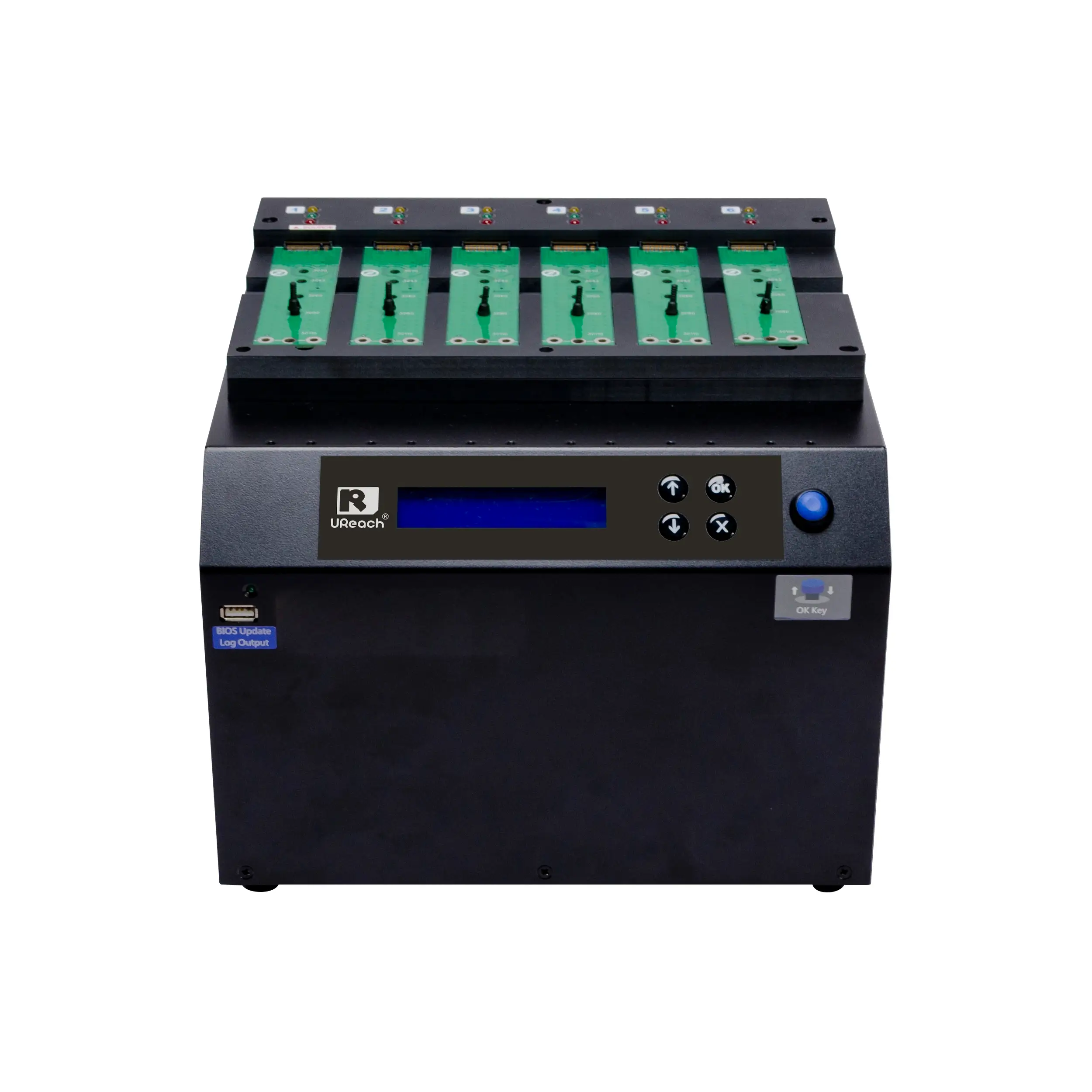
PE600

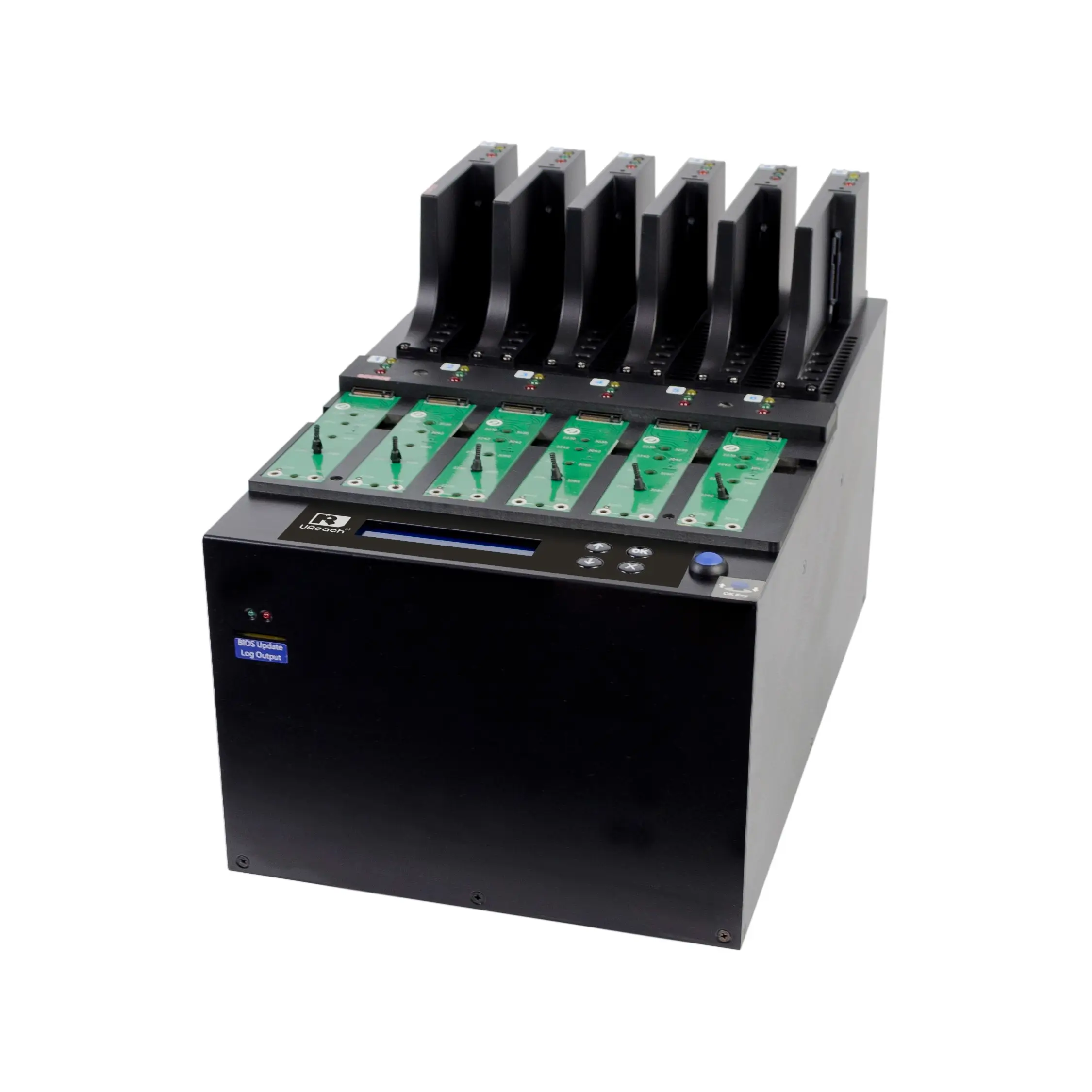
M.2 NVME 6 Ports PCIe SSD Cloner

U-Reach Malaysia PE Series
  • How to choose a Hard Disk Cloner?

Find out more in the following article:Top 6 Recommended Hard Disk Cloners for Efficient Data Backup and Cloning

Issues You May Encounter During Cloning

Q1: Can I clone a drive with different file systems using a duplicator?
A1: Yes, most duplicators, like U-Reach models, support multiple file systems, including Windows, macOS, and Linux.

Q2: What happens if the source drive’s data exceeds the target drive’s capacity?
A2: The cloning process will fail. Ensure to resize partitions and reduce data on the source drive to fit the target drive before cloning.

Q3: Is it safe to clone a failing hard drive?
A3: Cloning may work, but it’s safer to back up critical data first. A failing drive can corrupt the cloning process.

Q4: What should I do if the target drive doesn’t boot after cloning?
A4: Check for issues like mismatched partition styles (MBR vs. GPT). You may need to repair boot records or ensure the target drive is set as the primary boot device in BIOS.

Q5: Are there alternatives to System and Data Copy?
A5: Full copy modes are available but will duplicate all sectors, requiring equal or larger target drive capacity. Use System and Data Copy for efficient cloning to smaller drives.

Conclusion

HDD cloning from large drives to smaller ones is a manageable process when using a hard drive duplicator. By resizing partitions and leveraging the System and Data Copy feature, you can achieve fast, reliable results. Whether you’re upgrading systems or handling IT operations, these tools simplify data management and enhance productivity.

For more details on duplicators or assistance with specific use cases, contact us today!

With over 20 years of experience, U-Reach Inc. specializes in high-speed, stable data solutions, including duplication, inspection, and data-erasing equipment for Flash, HDD, and M.2 PCI-E SSDs.

U-Reach Malaysia (Fobedo Group Sdn. Bhd.) was established in Kuala Lumper in 2024 as a local branch, expanding services across South East Asia. U-Reach is a trusted global brand, used by leading companies in industries such as semiconductor IC design, government, military, medical, and data center.

With 8 branches worldwide, U-Reach offers comprehensive technical support and real-time service to meet the needs of local and multinational businesses.

Click here to contact our hard disk cloning professional consultants immediately!

        Check out our full series of Cloner: Full Series Data Data Cloner  

        Check out our Carry series of Cloner : Carry Series HDD/SSD Cloner 

        UReach-Malaysia official website: https://ureach.com.my/

         E-mail: info@ureach.com.my


Leave a Comment

Your email address will not be published. Required fields are marked *

Scroll to Top