How to Clone IDE Hard Drive to SATA or SSD: Step-by-Step Guide

Do you still using older PC or server with IDE storage? Do you experience the hassle of cloning IDE to IDE/SATA hard drives? You are now at the right page to get the solution to your need.

What is IDE?

It is an older storage interface that widely used between 1990s to 2000s for connecting storage media or optical drive to computer motherboards. Before SATA has become common, IDE storage uses parallel ATA (PATA) for transmit data between storage device and computer motherboard. It features 40-pins interface that connected through flat ribbon cable to motherboard. In addition, IDE storage comes in 2 sizes: 2.5 inch and 3.5 inch. For 3.5-inch IDE storage media, it features another 4-pin power connection to get enough power from motherboard to operate the hard drive. The highest speed of IDE data transfer rate is 133MBps.

How to clone IDE hard drive?

Step 1: Prepare the equipment PRO198M and 2.5 or 3.5 inch IDE-to-SATA adapter

Step 2: Setup the right setting

Step 3: Start cloning

ide clone

Step 1: Prepare the equipment PRO198M and IDE-to-SATA adapter

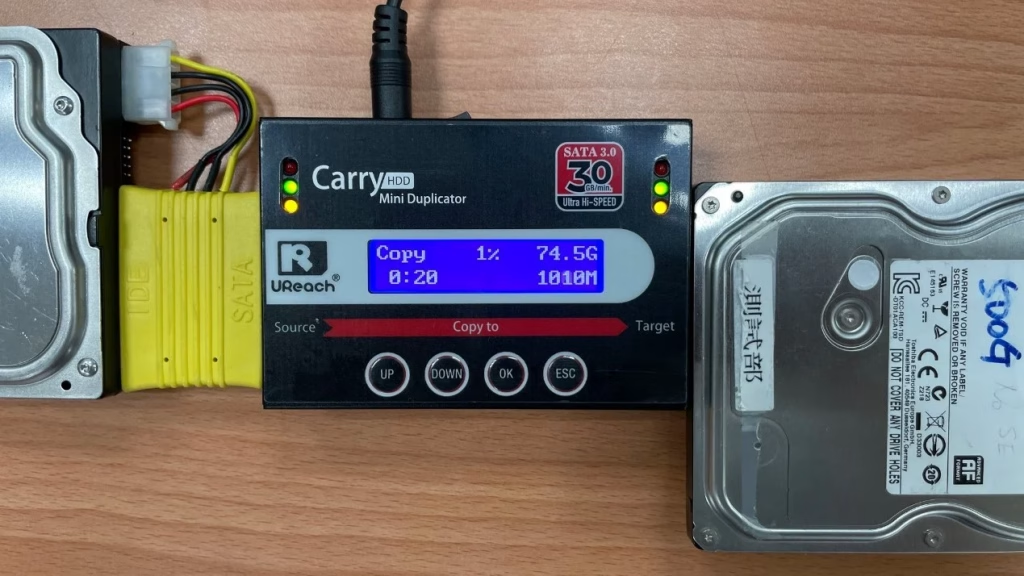
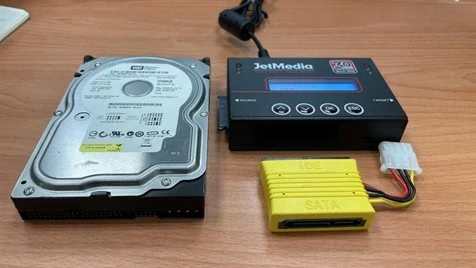
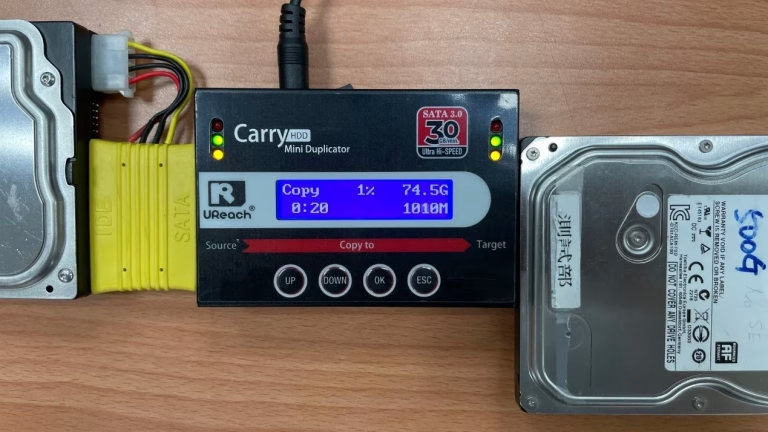
All you need is a UReach PRO198M duplicator and UReach IDE-to-SATA adapter. PRO198M is a stand-alone duplicator that does not require connecting to computer, it can just connects IDE hard disk through IDE-to-SATA adapter and a new SATA hard disk through SATA interface on the other end. Additionally, you can clone to new IDE hard disk by prepare 2 IDE-to-SATA adapters.

Step 2: Setup the right setting

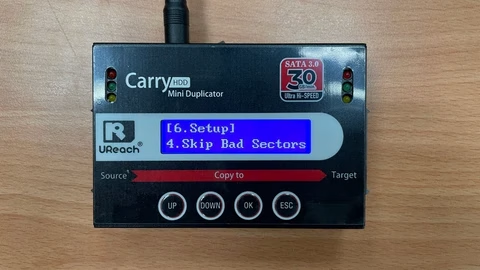
Depending on user requirement, you can set the PRO198M duplicator into copy “System and Files” for quicker cloning process. If bad sector is present in old IDE hard disk, you can enable skipping bad sector mode to seamlessly cloning the IDE hard disk to new hard disk without interruption. Moreover, you can get comprehensive information like number of bad sector present in old IDE hard disk after clone.

Step 3: Start cloning

Run the Copy+Compare function to start cloning. The Compare function is run after cloned to ensure copied data on target drive is same logical block addressing (LBA) as on the source drive. The Copy+Compare function adopts accurate bit-by-bit position that duplicate data into new hard disk in same number and position manner.

clone ide hard drive

What if my master or source hard disk has bad sector?

If there is bad sector present in source hard disk, the UReach PRO198M duplicator support skip bad sector function and allow user to clone hard disk even with bad sector.

ide clone dock

Conclusion

Your IDE hard disk can be cloned using the above method in worry-free. Not only that, UReach PRO198M also comes with SATA interface on both ends that could support 2.5/3.5 inch SATA HDD SSD duplication to promote its versatility.

With over 20 years of experience, U-Reach Inc. specializes in high-speed, stable data solutions, including duplication, inspection, and data-erasing equipment for Flash, HDD, and M.2 PCI-E SSDs.

U-Reach Malaysia (Fobedo Group Sdn. Bhd.) was established in Kuala Lumpur in 2024 as a local branch, expanding services across South East Asia. U-Reach is a trusted global brand, used by leading companies in industries such as semiconductor IC design, government, military, medical, and data center.

With 8 branches worldwide, U-Reach offers comprehensive technical support and real-time service to meet the needs of local and multinational businesses.

Click here to contact our hard disk cloning professional consultants immediately!

        Check out our full series of Eraser: Full Series Data Eraser  

        Check out our M.2 NVMe series of Eraser: M.2 NVMe Series SSD Eraser 

        UReach-Malaysia official website: https://ureach.com.my/

         E-mail: info@ureach.com.my

Leave a Comment

Your email address will not be published. Required fields are marked *

Scroll to Top